Documentation
On this page
Sync
Every change you make in the app, such as a new entry, an edit or a delete, is committed to git on the phone straight away. Nothing is sent to the server until you sync, unless you turn on Push after each change. Until then, the change exists only on this phone.
Sync
Pull down on the list to synchronize. You can also use the three dots in the search bar:
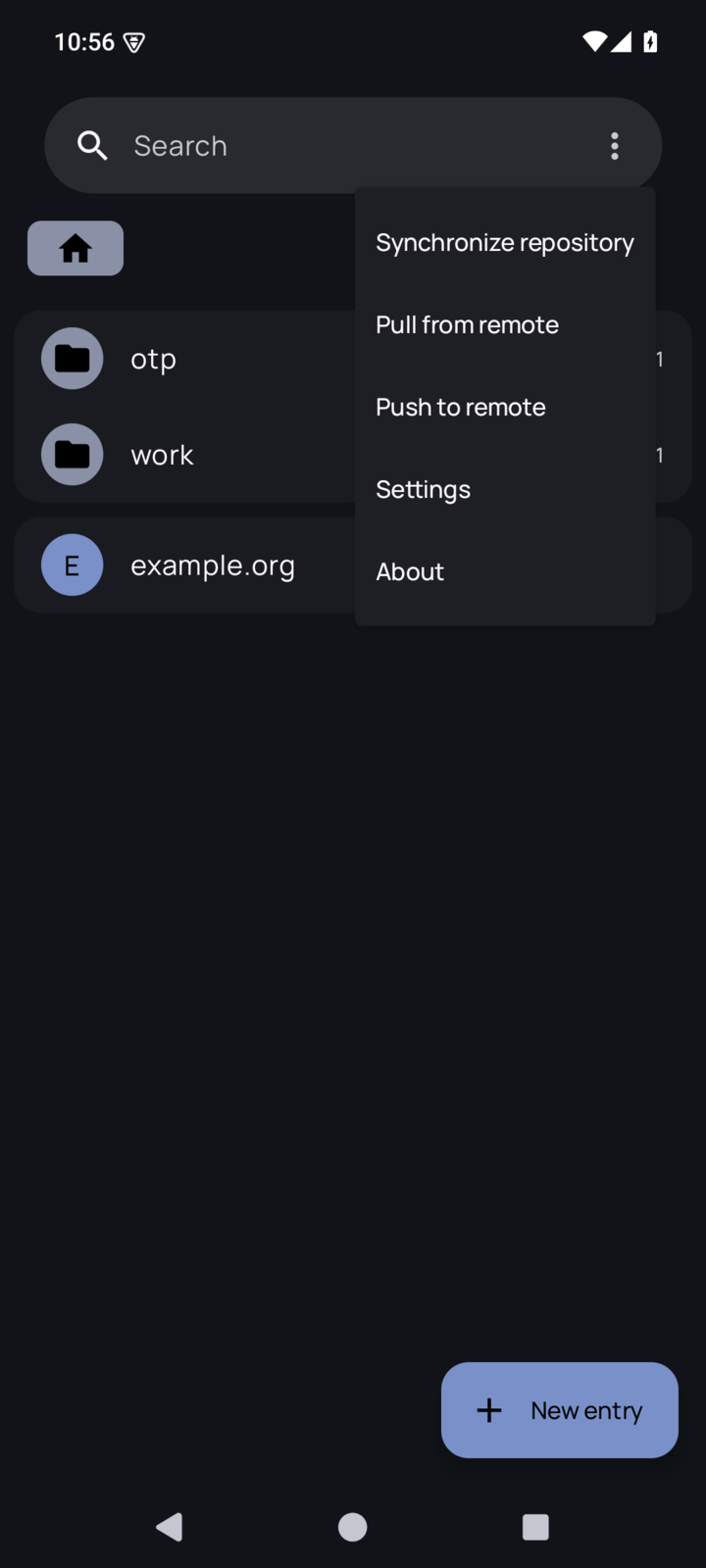
- Synchronize repository fetches the server’s changes and sends yours.
- Pull from remote only fetches.
- Push to remote only sends.
Synchronize is what you want almost every time. To turn the gesture off, use Disable pull to sync action in Settings.
Push after each change
Turn on Push after each change in Settings, then Repository, and every new entry, edit, move, rename or delete made in the app is pushed right away. This keeps the server up to date, so a change on a computer is less likely to collide with one waiting on the phone. It is off by default.
Three things to know:
- Entries saved through autofill are not pushed. They stay on the phone until the next push or sync.
- It only sends. To get the server’s changes you still need to sync.
- If your SSH key is protected by the screen lock, the app asks for it at every change.
If the push fails, for example with no network or when the server has newer changes, the
app shows Saved on this device, but not pushed. Sync to try again. Your change is safe
in a local commit: sync when you can.
When two devices change the same thing
If you edit the same entry on the phone and on a computer before syncing, git cannot pick a winner. The app uses a rebase by default (Rebase on pull), and the sync stops with an error saying the pull failed and that you are in a detached head. Your work is not lost.
Open Settings, then Repository, then Local Git config & utilities. You have two ways out:
Keep your changes
Abort rebase and push new branch cancels the rebase and sends your local work to a new branch on the server. The app tells you its name. Then, on a computer:
|
|
Git stops on the entries that conflict. Encrypted files cannot be merged line by line,
so keep one version of each, finish the merge, and send it back with pass git push.
On the phone, finish with the hard reset below, so that the phone matches the server
again.
Throw your changes away
Hard reset to remote branch asks for the branch name, then makes the phone an exact copy of it.
Other tools
The same screen sets the name and email used for commits, shows the commit log with Show commit log, and offers Run garbage collection job to tidy up the local repository.